IT Professional

Sharing the knowledge I've came across through my own on the job experiences.

If you've been reading my blog, I recently had to make a suggestion to purchase a new external hard drive to a customer. I would like to take some time to go through what I considered while selecting the external hard drive.


If you don't recall this topic, here is a brief history: The customer is working on an Imac running Macintosh OS X 10.6 (Snow Leopard). She would like to have an automated backup system running so she doesn't have to worry about her data if the hard drive was to fail. Our solution is to use Time Machine, which runs automated backups every hour, every day, every week and every month, to an external hard drive. My solution was to have her purchase a Fantom GreenDrive Quad Interface 1TB External hard drive.

1. Size
How much space do you need in order to accomplish what you are trying to backup? Are you backing up a lot of word documents or pictures or videos? A good recommendation is to multiple what you need by two or three to allow for future expansion. In this case, we selected one terabyte.

2. Operating System Support
What operating system will this external hard drive be used on? There are several such as Windows, OS X, UNIX, etc. Make sure that the external hard drive supports your current version of operating system, which in this case is 10.6 or Snow Leopard, as well as any other machines you could potentially connect to it to.

3. Connectivity
What sort of connections will be used on your computer? Is it new enough that it supports eSATA? It is an older machine that doesn't have USB support. Does it support Firewire 800 or Firewire 400? I personally like to make sure that there is more than one method of being able to connect the external hard drive in case one interface fails so I made the suggestion to get an external hard drive with four interfaces: USB 2.0, eSATA, Firewire 400 & Firewire 800. The advantage of having eSATA is it supports 300MB of data transfered every second compared to USB 2.0, which only supports 60MB per second. I also made sure to get Firewire 800 because a lot of the newer Apple computers no longer have Firewire 400 connectors built-in.
4. Warranty
It is always a good idea to ensure the product that you are purchasing has some sort of warranty. This would allow you to send your hard drive in for repair if it was to die prematurely before the warranty has expired. It also allows them to resolve any issue that might have been a manufacturing flaw or issue with the system.


An employee opened a support ticket for the Toshiba 1TB Desktop External Hard Drive that they purchased to make backups of their Imac running Mac O S X 10.6 a few weeks ago. They were having a problem with Time Machine saying there had been no backups made for several weeks.

Problem
The external hard drive has built-in power management settings that causes it to turn off if it isn't in use for 5 minutes. The computer is unable to bring it back out of power saving mode so the hourly, daily, weekly and monthly scheduled backups cannot be performed.

Solution
There is a solution offered for Windows on Toshiba's support website here, but there is not one for Mac OS X. I attempted to call Toshiba technical support but after being redirected several times, I was informed that they do not provide technical support for this external hard drive unless it is 15 days within the purchase. After several hours attempting to search for a resolution on the Internet, I came to the conclusion that it would be more cost effective to have the employee purchase a different external hard drive.

While this is not the best solution in most cases, I believe it makes sense in this one. My reason being is because the external hard drive only cost around $100 to begin with. It would only take on average about 6 hours of our Information Technology staff's labor to equal the cost of that hard drive. Also, this problem could have been bypassed if they had made an informed decision on what external hard drive to purchase by doing some searching for reviews on this model before deciding to purchase it as well as receiving recommendations from the local Information Technology department.


Many companies have started to upgrade from Microsoft Office 2003 to Microsoft Office 2007, although Microsoft will continue to provide support until April 8, 2014. The major difference between the two is the interface has been changed to a ribbon style and the introduction of a new file format called Open Office XML (also informally known as OOXML or OpenXML). It is a zipped, XML-based file format developed by Microsoft. The Open Office XML specification has been standardized by ECMA.

File Extensions
There are several different file types between Microsoft Word, Powerpoint & Excel such as the XML (.docx, .xlsx, or .pptx), XML Macro-Enabled Template (.dotm, .xltm, or .potm), Template (.dotx, .xltx, or .potx), and Macro-Enabled (.docm, .xlsm, or .pptm). There are some additional file formats for Microsoft Powerpoint & Excel. In Excel 2007, there is a Binary Workbook which has the .xlsb extension and the Macro-Enabled Add-in which has the .xlam extension. In Powerpoint 2007, there is a XML Show (.ppsx), Macro-Enabled XML Show (.ppsm), and Macro-Enabled XML Add-In (.ppam)

Advantages
1. Lower file size
2. Files are more reliable. Less likely to become corrupt.

Disadvantages
1. Not backwards compatible without a convertor. The files will open slower due to the file conversion.

The Microsoft Office Compatibility pack is available from Microsoft here for Microsoft Office XP and 2003. This will allow you to open, edit and save
Before installing the pack, please make sure that you have applied all the latest patches, otherwise you will probably run into some errors. If for some reason you forgot to apply them, click here for the solutions to those errors.

Free training on Office 2007 is available at:http://office.microsoft.com/en-us/support/training-FX101782702.aspx


I was given the task today from my direct supervisor to deliver an encrypted netbook to connect to a piece of scientific equipment. They intend on using it in a lab space with limited counter space and would like the availablity to move the computer when its not in use. The netbook meets their needs because of it's small, sleek design.

Error Message
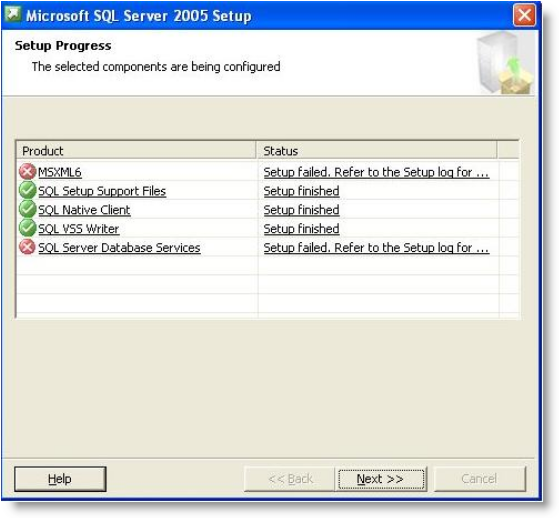
The error I was dealing with today was: "Fatal error during installationMainEngineThread is returning 1603" which was so kindly left in the SQL log. When you attempt to uninstall MSXML 6.0 Service Pack 2 from the Add/Remove Programs in the Control Panel, you receive the following error: "Fatal error during installation."This is every IT customer support person's favorite type of error to manage. It tells you there is a problem but it doesn't actually give much of a clue as to what the problem is without digging deeper into log files.

Explanation
It appears that MSXML 6.0 Service Pack 2 is built in to Windows XP Service Pack 3. The MSXML 6.0 Service Pack 2 package wasn't built to know what to do if the package already exists so it errors out. You need to remove the current MSXML 6.0 Service Pack 2 package and reinstall it.

Resolution
Download & install the Windows Installer Cleanup Utility or MSICUU2.exe. You can locate this installer here*. This utility allows you to uninstall failed installs of programs that were installed using Windows Installer. It was retired from Microsoft's download site on June 25, 2010 due to conflicts with Microsoft Office 2007 and the potential of damaging other components installed on the computer.